

Prerequisites
Before integrating Dify with TrueFoundry, ensure you have:- TrueFoundry Account: Create a Truefoundry account and follow the instructions in our Gateway Quick Start Guide
- Dify Installation: Set up Dify using either the cloud version or self-hosted deployment with Docker
Integration Steps
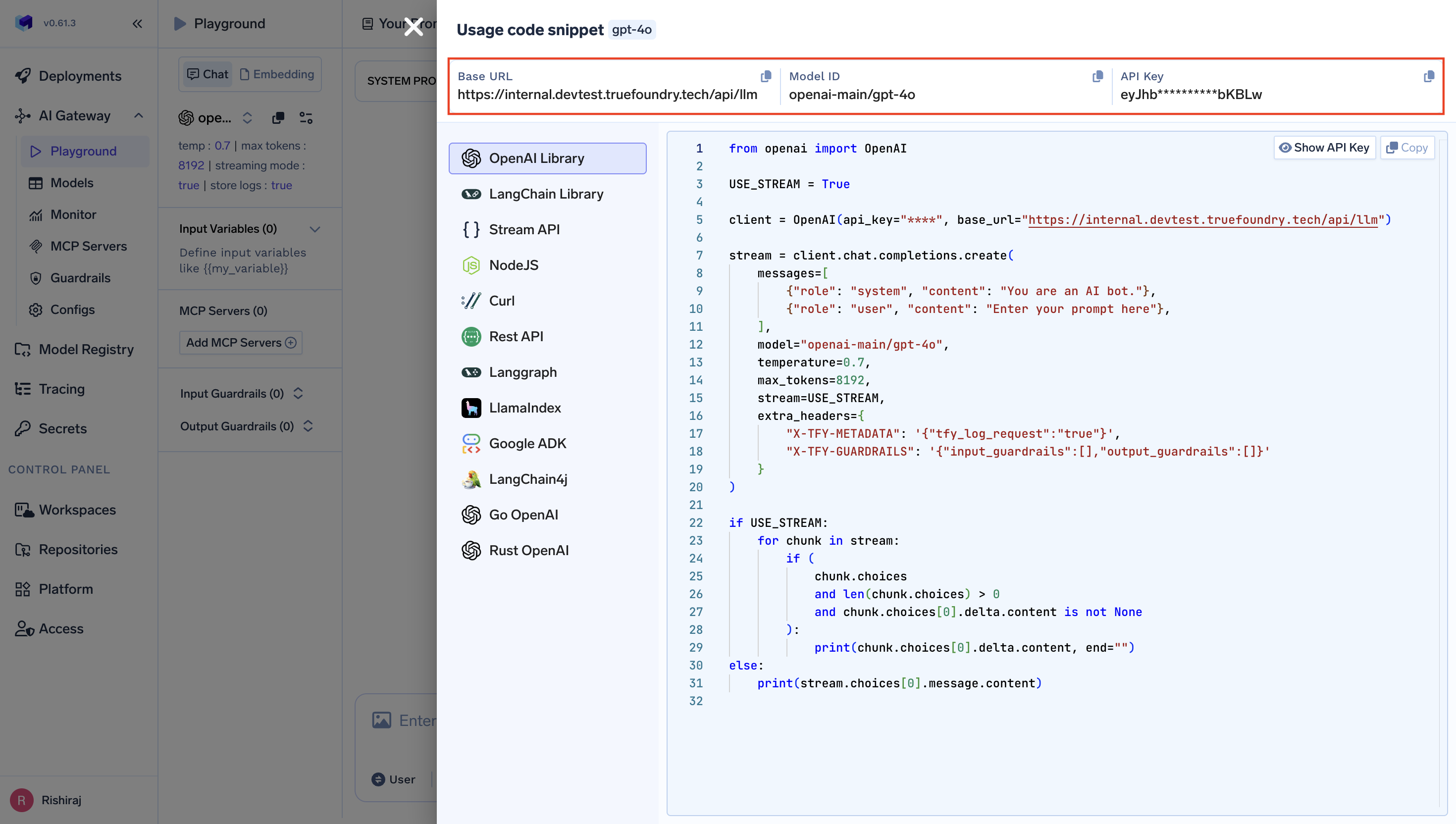
This guide assumes you have Dify installed and running, and have obtained your TrueFoundry AI Gateway base URL and authentication token.Step 1: Access Dify Model Provider Settings
- Log into your Dify workspace (cloud or self-hosted).
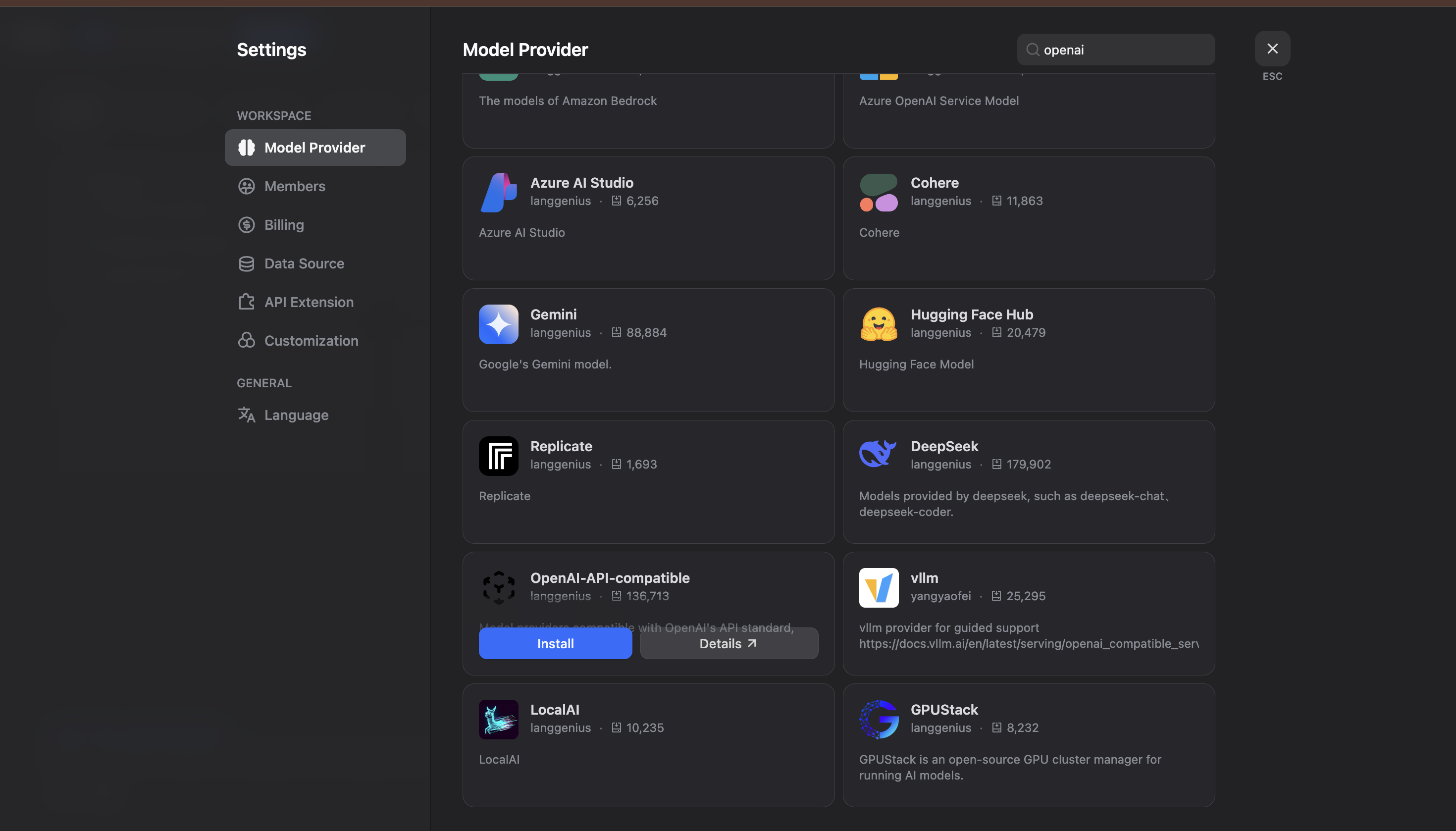
- Navigate to Settings and go to Model Provider:
Step 2: Install OpenAI-API-Compatible Provider
- In the Model Provider section, look for OpenAI-API-compatible and click Install.
- Configure the OpenAI-API-compatible provider with your TrueFoundry details:
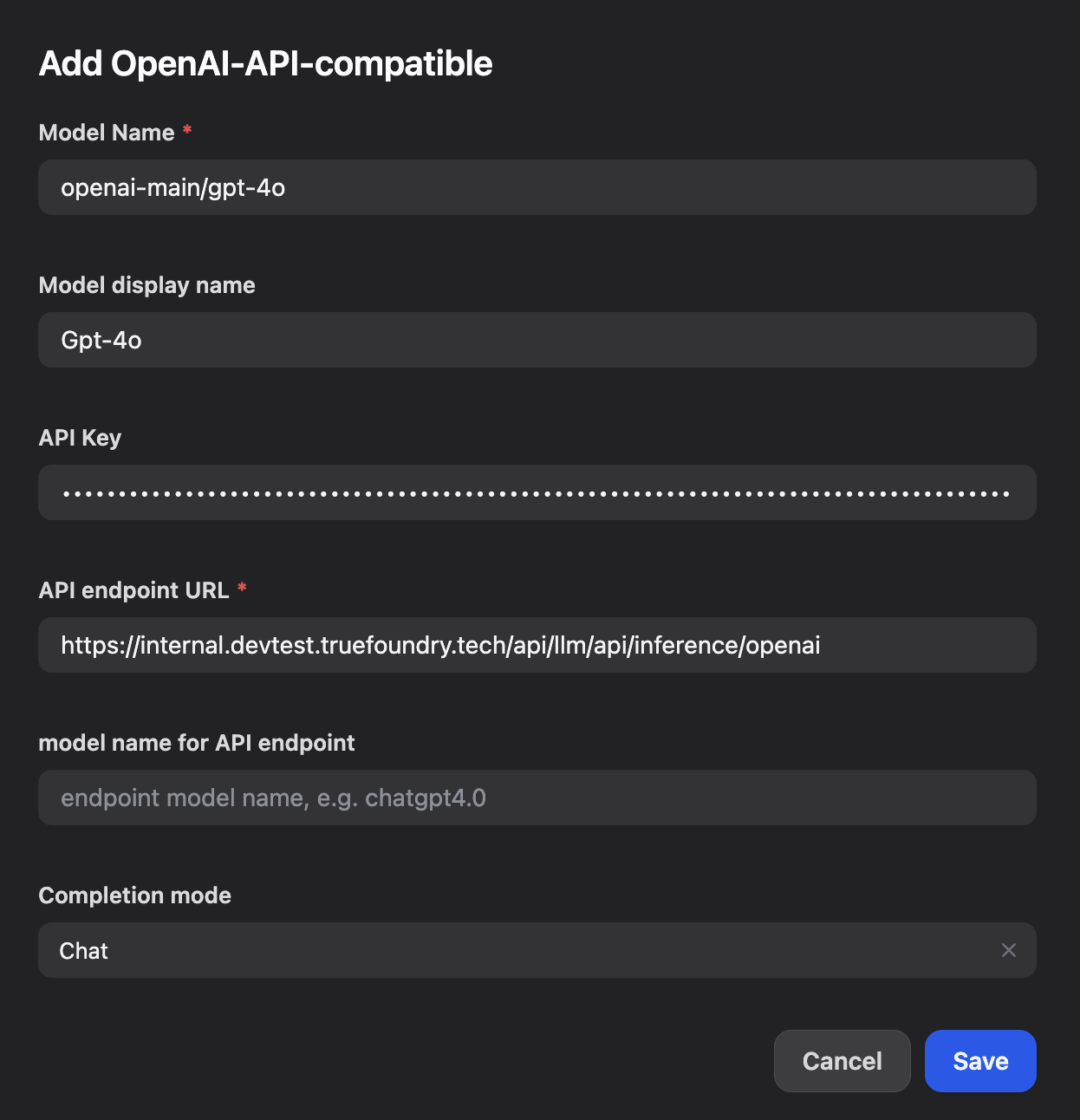
- Model Name: Enter your TrueFoundry model ID (e.g.,
openai-main/gpt-4o) - Model display name: Enter a display name (e.g.,
Gpt-4o) - API Key: Enter your TrueFoundry API Key
- API endpoint URL: Enter your TrueFoundry Gateway base URL (e.g.,
https://internal.devtest.truefoundry.tech/api/llm/api/inference/openai) - model name for API endpoint: Enter the endpoint model name (e.g.,
openai-main/gpt-4o)
Step 3: Save and Test Your Configuration
- Click Save to apply your configuration in Dify.
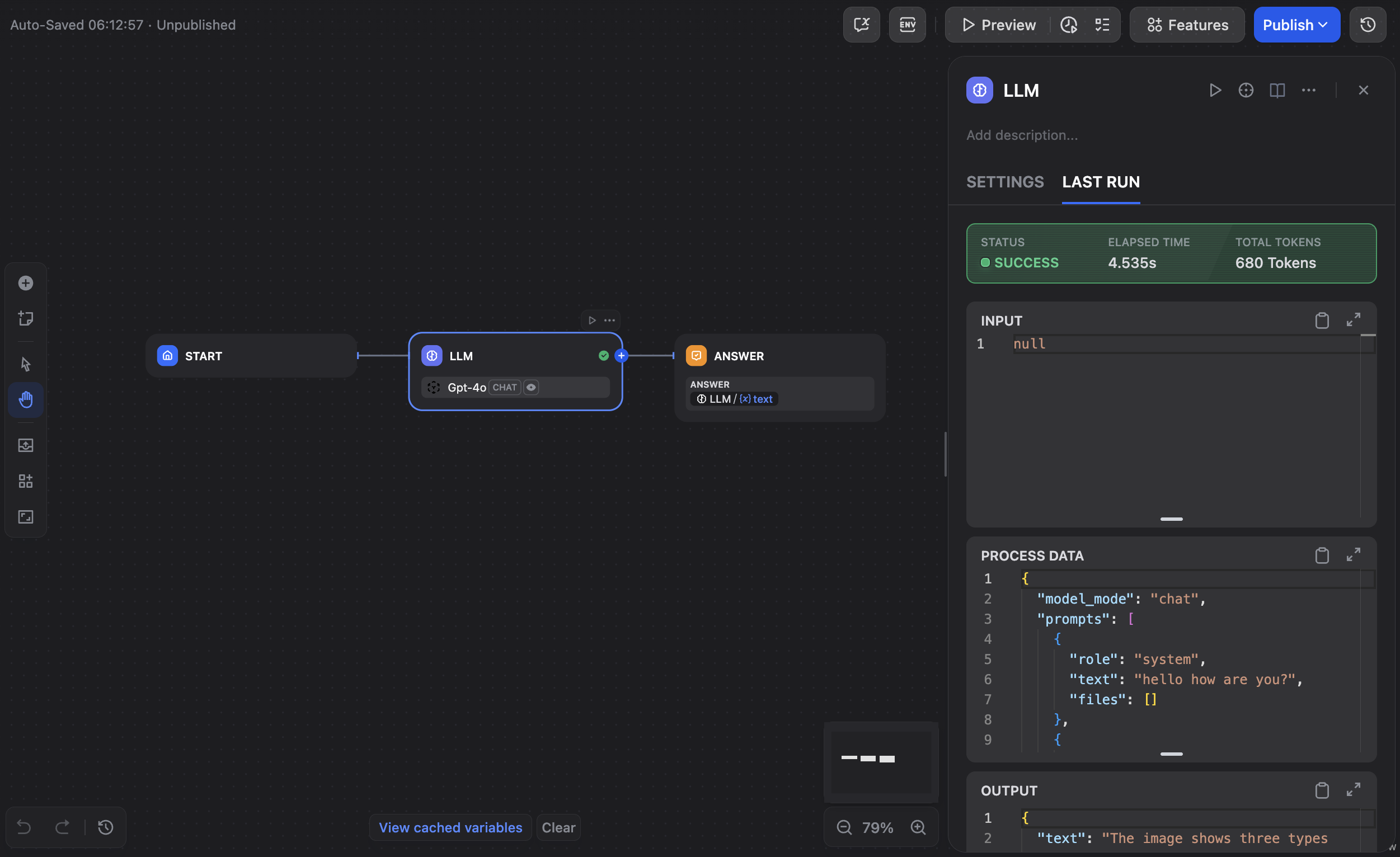
- Create a new application or workflow to test the integration:
- Test the integration by creating a simple LLM workflow to verify that Dify is successfully communicating with TrueFoundry’s AI Gateway.
Edit this page | Report an issue