


Quick Integration
Download and Launch Ollama
- Download Ollama Visit https://ollama.com/download to download the Ollama client for your system.
-
Run Ollama and Chat with Llama3.2
After successful launch, Ollama starts an API service on local port 11434, which can be accessed at
http://localhost:11434. For other models, visit Ollama Models for more details. -
Integrate Ollama in Dify
In
Settings > Model Providers > Ollama, fill in: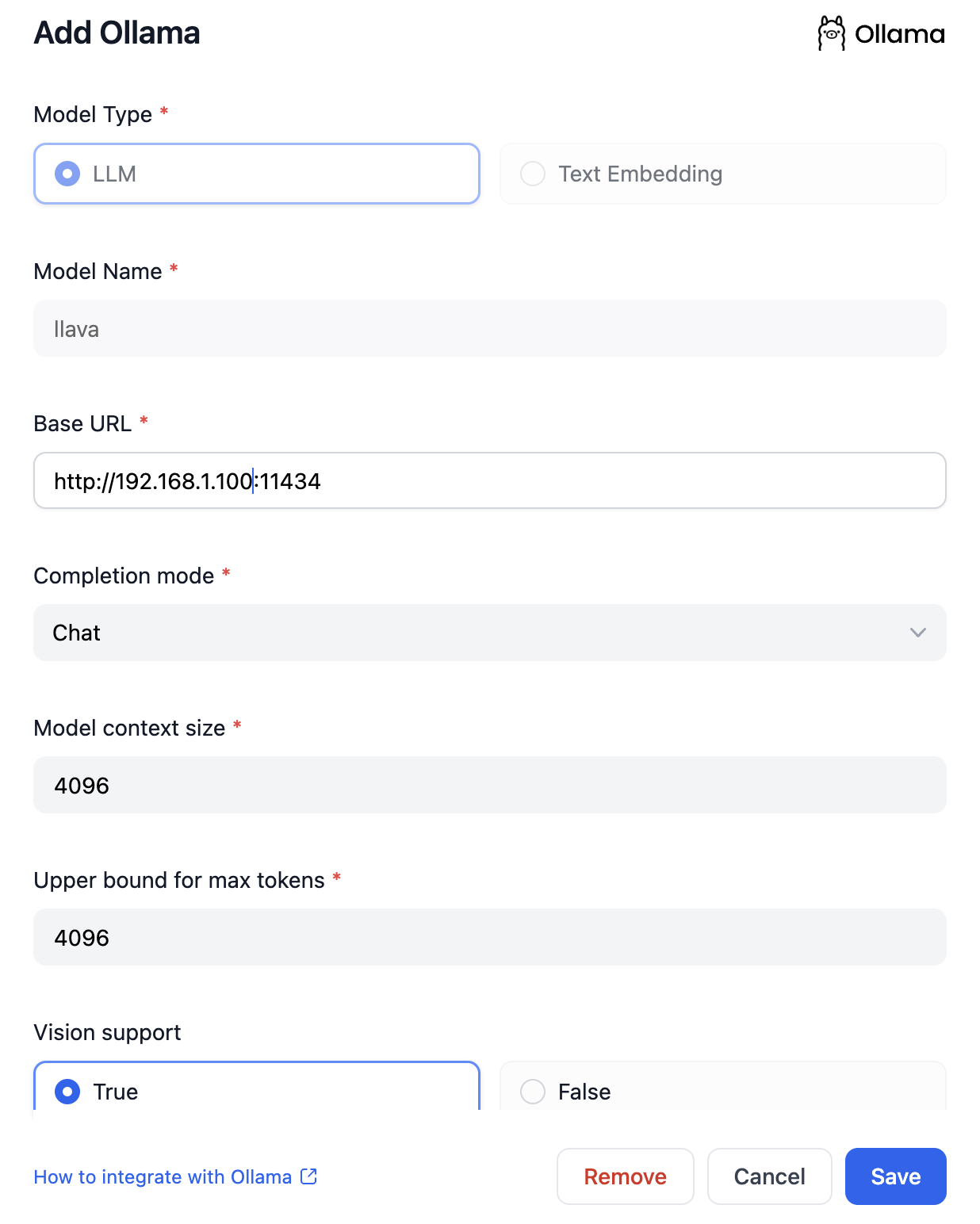
-
Model Name:
llama3.2 -
Base URL:
http://<your-ollama-endpoint-domain>:11434Enter the base URL where the Ollama service is accessible. If filling in a public URL still results in an error, please refer to the FAQ and modify environment variables to make Ollama service accessible from all IPs If Dify is deployed using Docker, consider using the local network IP address, e.g.,http://192.168.1.100:11434orhttp://host.docker.internal:11434to access the service. For local source code deployment, usehttp://localhost:11434. -
Model Type:
Chat -
Model Context Length:
4096The maximum context length of the model. If unsure, use the default value of 4096. -
Maximum Token Limit:
4096The maximum number of tokens returned by the model. If there are no specific requirements for the model, this can be consistent with the model context length. -
Support for Vision:
YesCheck this option if the model supports image understanding (multimodal), likellava.
-
Model Name:
-
Use Ollama Models
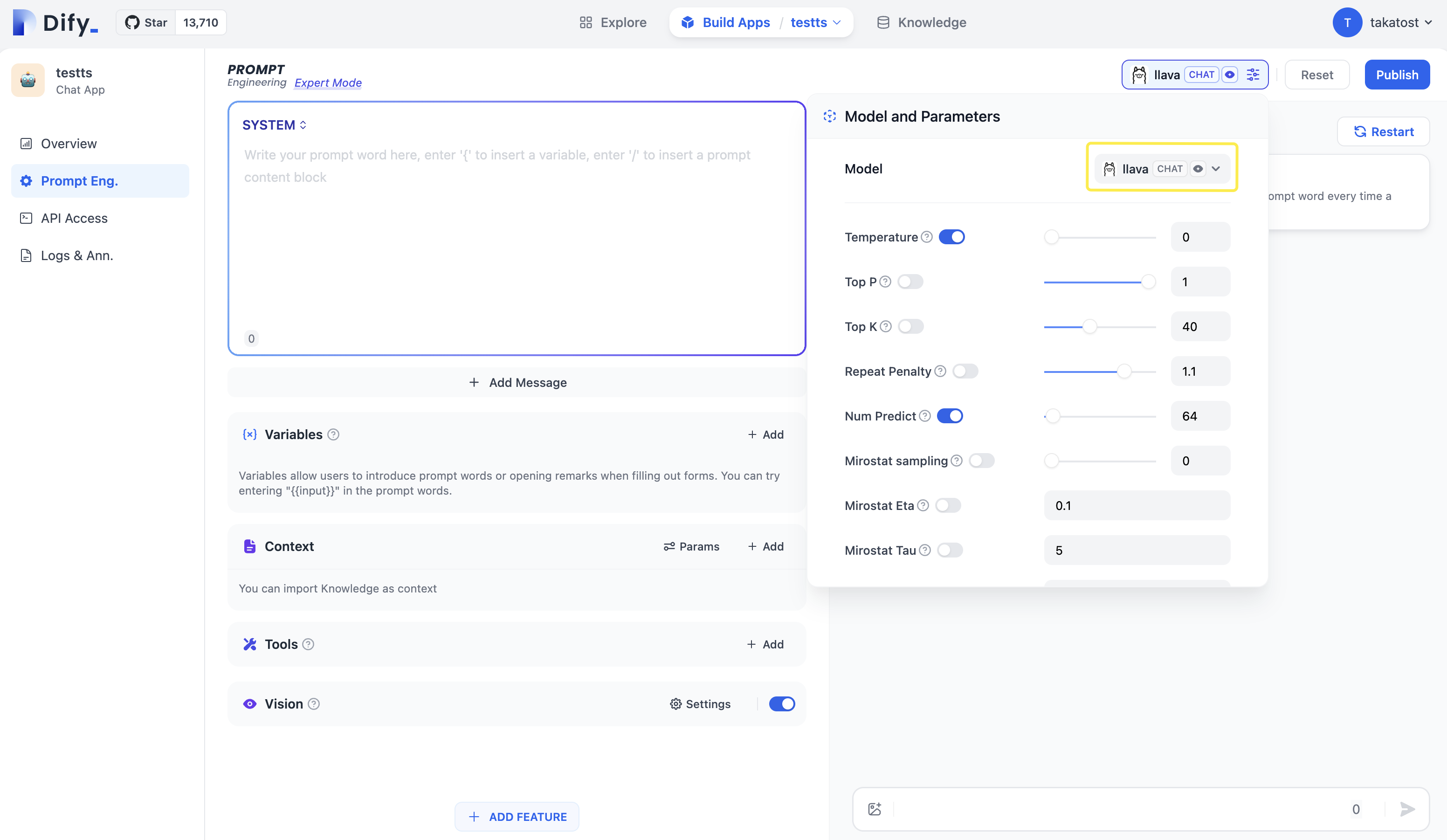 Enter
Enter Prompt Eng.page of the App that needs to be configured, select thellavamodel under the Ollama provider, and use it after configuring the model parameters.
FAQ
⚠️ If you are using docker to deploy Dify and Ollama, you may encounter the following error:
localhost usually refers to the container itself, not the host machine or other containers.
You need to expose the Ollama service to the network to resolve this issue.
Setting environment variables on Mac
If Ollama is run as a macOS application, environment variables should be set usinglaunchctl:
-
For each environment variable, call
launchctl setenv. - Restart Ollama application.
-
If the above steps are ineffective, you can use the following method:
The issue lies within Docker itself, and to access the Docker host.
you should connect tohost.docker.internal. Therefore, replacinglocalhostwithhost.docker.internalin the service will make it work effectively.
Setting environment variables on Linux
If Ollama is run as a systemd service, environment variables should be set usingsystemctl:
-
Edit the systemd service by calling
systemctl edit ollama.service. This will open an editor. -
For each environment variable, add a line
Environmentunder section[Service]: - Save and exit.
-
Reload
systemdand restart Ollama:
Setting environment variables on Windows
On windows, Ollama inherits your user and system environment variables.- First Quit Ollama by clicking on it in the task bar
- Edit system environment variables from the control panel
- Edit or create New variable(s) for your user account for
OLLAMA_HOST,OLLAMA_MODELS, etc. - Click OK/Apply to save
- Run
ollamafrom a new terminal window
How can I expose Ollama on my network?
Ollama binds 127.0.0.1 port 11434 by default. Change the bind address with theOLLAMA_HOST environment variable.
Edit this page | Report an issue