

Introduction
With Code nodes, you can embed custom Python or JavaScript scripts into your workflow to manipulate variables in ways that are not possible with built-in nodes. Code nodes can simplify your workflow and are suitable for scenarios such as arithmetic operations, JSON transformation, and text processing. To use variables from other nodes within a Code node, select them as Input Variables and then reference them in your code.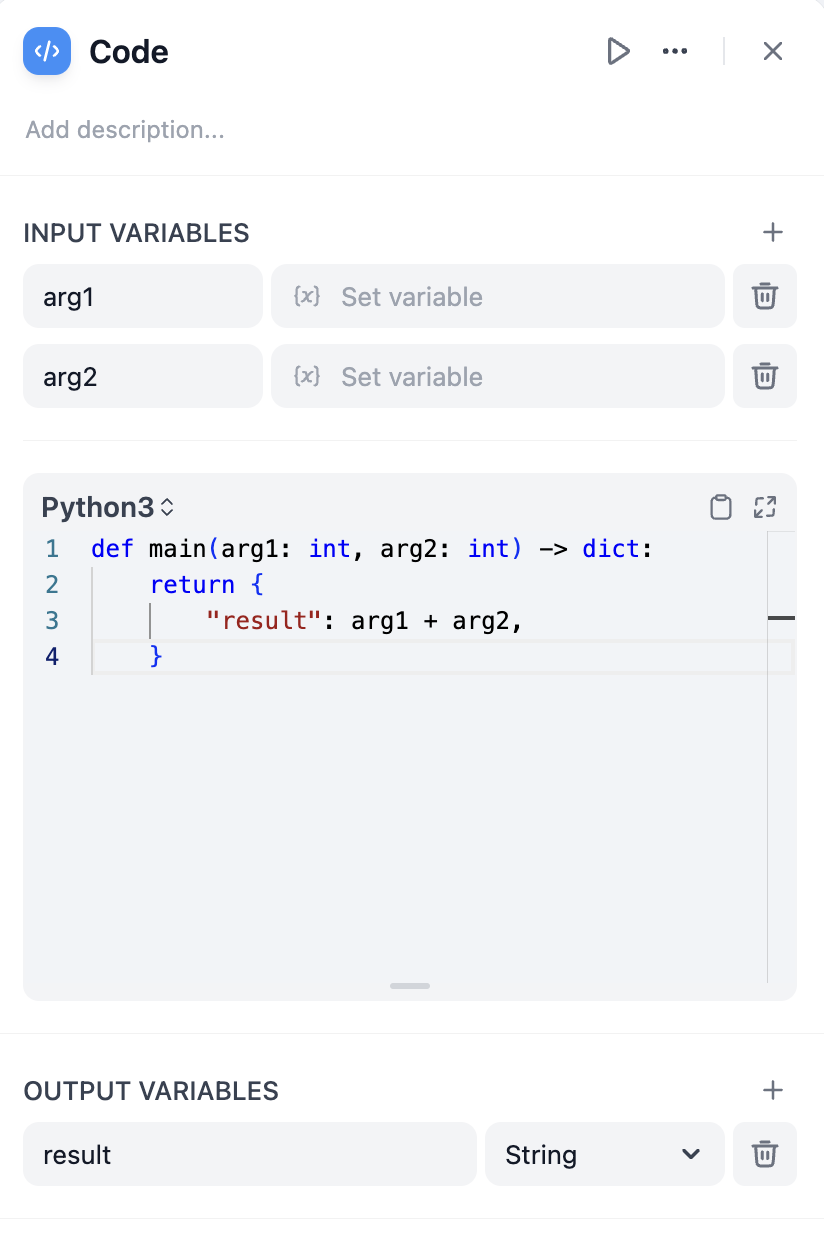
What a Code Node Can Do
The Code node allows you to perform operations such as structured data processing, mathematical calculations, and data concatenation.Structured Data Processing
In workflows, you often have to deal with unstructured data processing, such as parsing, extracting, and transforming JSON strings. A typical example is handling data from an HTTP node. In common API response structures, data is often nested within multiple layers of a JSON object, and you may need to extract specific fields. The Code node can help you accomplish these tasks. For example, the following code extracts thedata.name field from a JSON string returned by an HTTP node:
Mathematical Calculations
The Code node can also be used for complex mathematical computations within a workflow, such as evaluating intricate mathematical formulas or performing statistical analysis on data. For example, you can use the following code to calculate the variance of an array:Data Concatenation
When you need to combine data from multiple sources (such as multiple knowledge base searches, data queries, or API calls), the Code node can help you merge them. For example, the following code merges data from two knowledge bases:Local Deployment
If you are running an on-premises deployment, you must enable the Sandbox service to prevent the execution of malicious code. The Sandbox service is launched using Docker. You can start the service directly withdocker-compose:
If you have Docker Compose V2 installed, use
docker compose instead of docker-compose. You can check your version with $ docker compose version.For more information, see the official Docker documentation.Security Policies
Both Python and JavaScript execution environments are strictly isolated (sandboxed) to ensure security. This means you cannot use features that consume substantial system resources or could pose security risks, such as directly accessing the file system, making network requests, or executing operating system-level commands. These restrictions guarantee secure code execution while preventing excessive consumption of system resources.Advanced Features
Retry on Failure
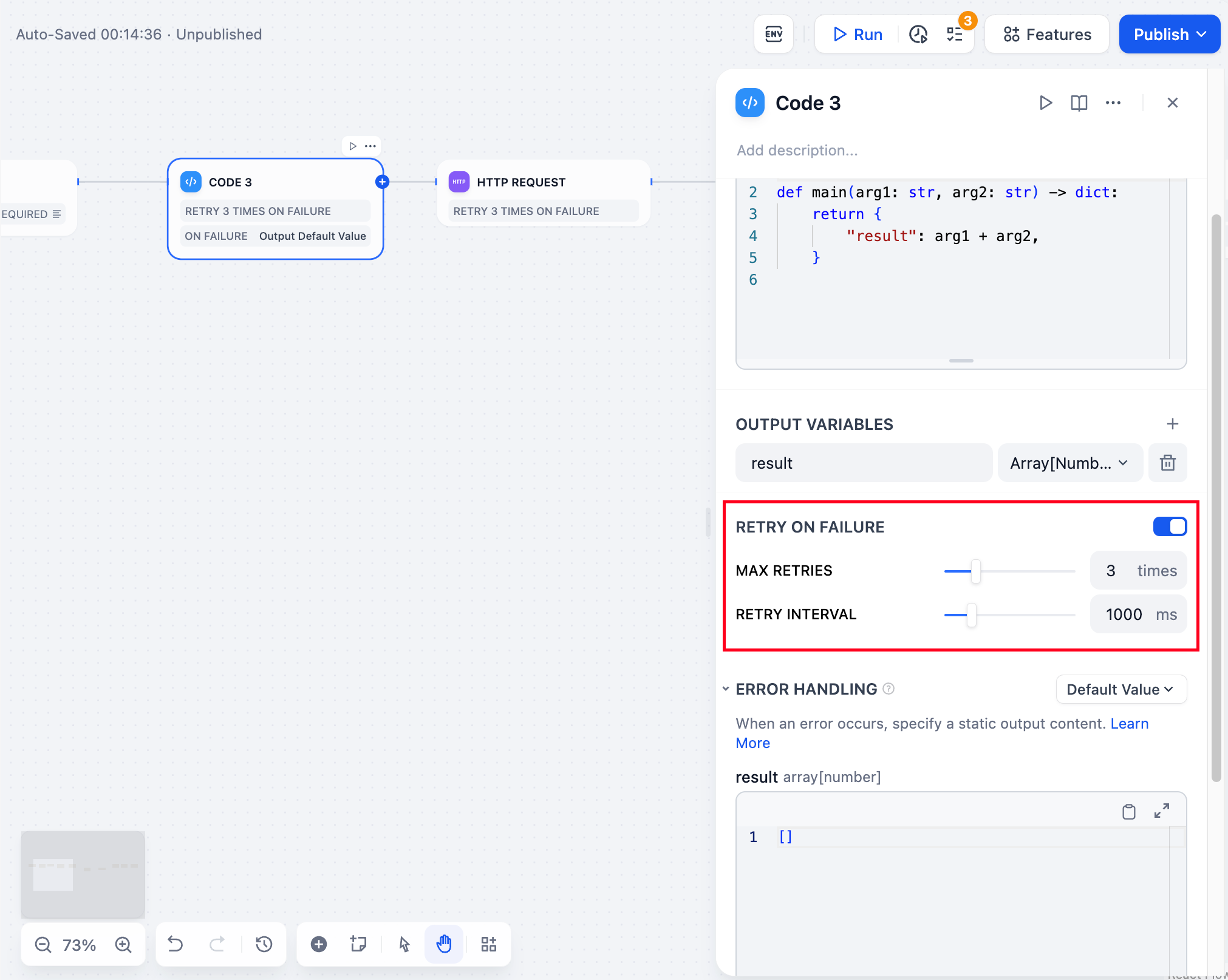
For certain exceptions that may occur in a node, a simple retry is often sufficient to resolve the issue. With Retry on Failure enabled, the node will automatically attempt to rerun according to a predefined policy upon failure. You can adjust the maximum number of retries and the interval between each retry.- The maximum number of retries is 10
- The maximum retry interval is 5000 ms
Error Handling
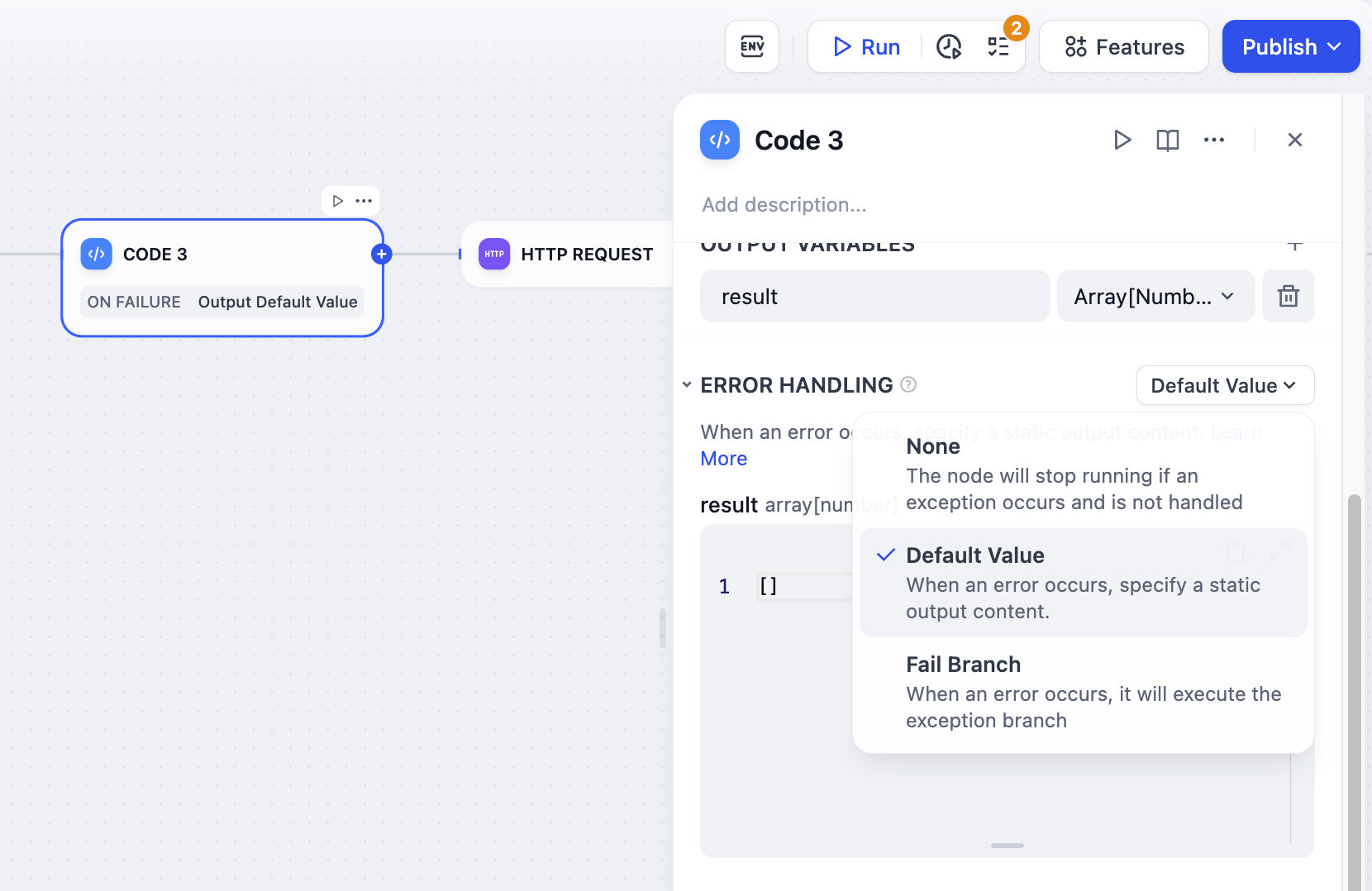
When processing information, Code nodes may encounter code execution errors. You can follow these steps to configure error branches, enabling a contingency plan when the node fails and thus preventing the entire workflow from being interrupted.- Enable Error Handling for the Code node.
- Select an error handling strategy and configure it.
FAQ
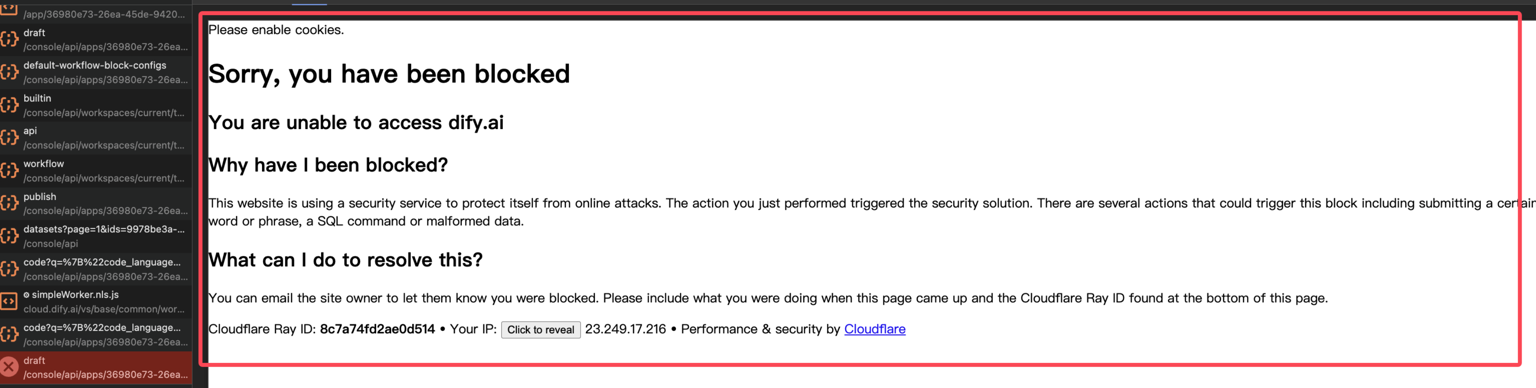
Why can’t I save the code in the Code node? Please check if your code contains any potentially harmful actions. For example:- Unauthorized file access: The code attempts to read the
/etc/passwdfile, which is a critical system file in Unix/Linux systems that stores user account information. - Sensitive information disclosure: The
/etc/passwdfile contains important information about system users, such as usernames, user IDs, group IDs, home directory paths, etc. Direct access could lead to information leakage.
Code Fix
You can enable automatic code fixing by using thecurrent_code and error_message variables from the last run.
When a Code node fails:
- The system captures the code and error message.
- These are passed into the prompt as context variables.
- A new version of the code is generated for review and retry.
Fix Prompt
You can customize the fix prompt, for example:In the prompt editor, use the variable insertion menu (
/ or {) to insert variables.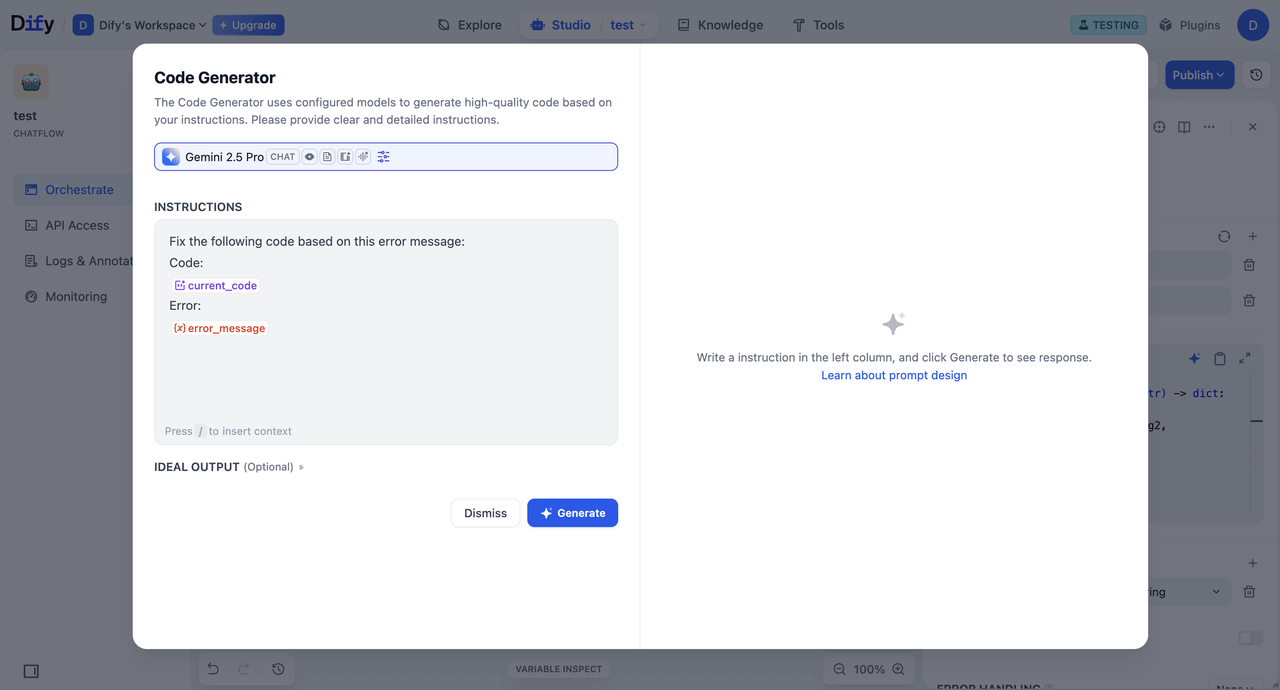
Context Variables
To enable automatic code fix, reference the following context variables in your prompt:current_code: The code from the last run of this node.error_message: The error message if the last run failed; otherwise, it is empty.
- The
last_runvariable can be used to reference the input/output of the previous run. - In addition to the variable above, you can also reference the output variables of any preceding nodes as needed.
Version Management
Version management reduces manual copy-pasting and allows you to debug and iterate on your code directly within the workflow.- Each fix attempt is saved as a separate version (e.g., Version 1, Version 2).
- You can switch between versions using the dropdown menu in the results display area.
Edit this page | Report an issue