

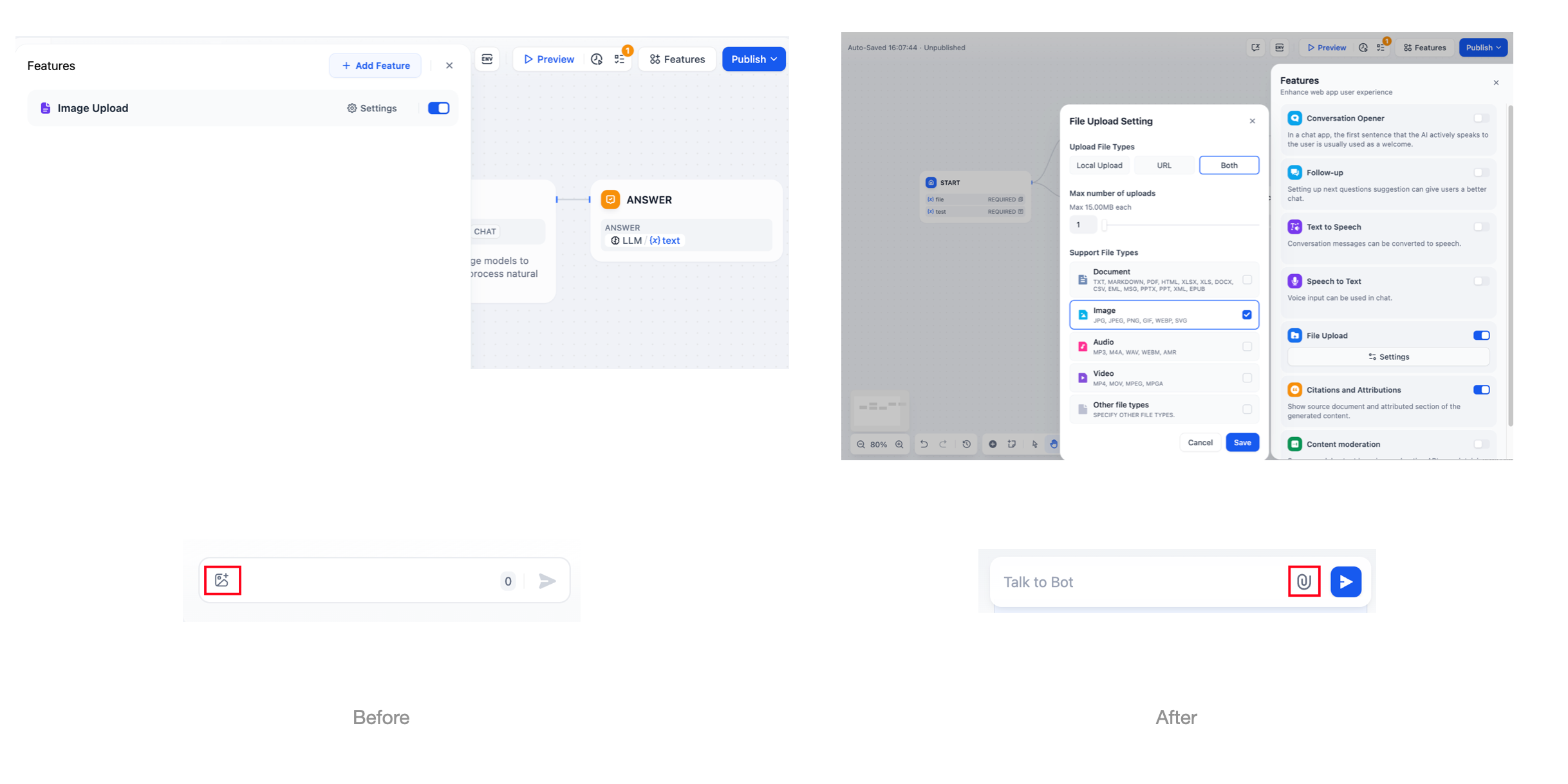
- The image upload option in Chatflow’s “Features” has been removed and replaced by the new “File Upload” feature. Within the “File Upload” feature, you can select the image file type. Additionally, the image upload icon in the application dialog has been replaced with a file upload icon.
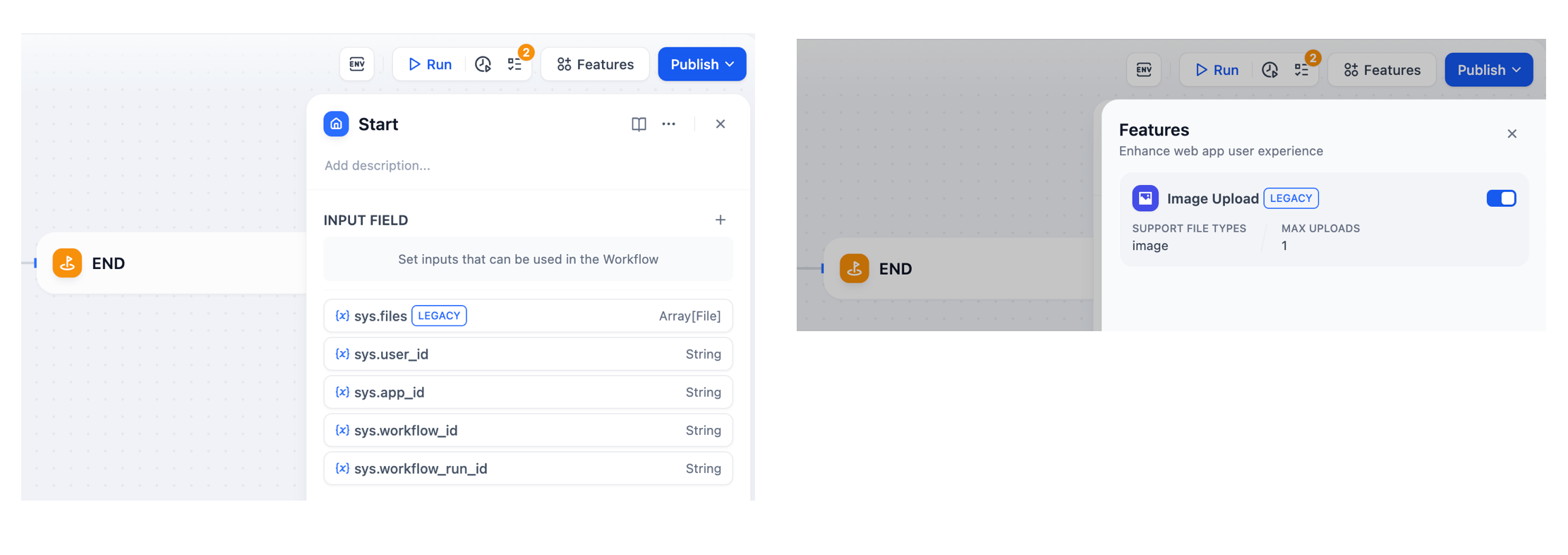
- The image upload option in Workflow’s “Features” and the
sys.filesvariable will be deprecated in the future. Both have been marked asLEGACY, and developers are encouraged to use custom file variables to add file upload functionality to Workflow applications.
Why Replace the “Image Upload” Feature?
Previously, Dify only supported image file uploads. In the latest version, a more comprehensive file upload capability has been introduced, supporting documents, images, audio, video, and custom file formats. Image uploading is now part of the broader “File Upload” feature. When adding the file upload feature, developers can simply check the “image” file type to enable image uploads. To avoid confusion caused by redundant features, we have decided to replace the standalone image upload feature in Chatflow applications with the more comprehensive file upload capability, and no longer recommend enabling image upload for Workflow applications.More Comprehensive Functionality: File Upload
To enhance the information processing capabilities of your applications, we have introduced the “File Upload” feature in this update. Unlike chat text, document files can carry a large amount of information, such as academic reports or legal contracts.- The file upload feature allows files to be uploaded, parsed, referenced, and downloaded as file variables within Workflow applications.
- Developers can now easily build applications capable of understanding and processing complex tasks involving images, audio, and video.
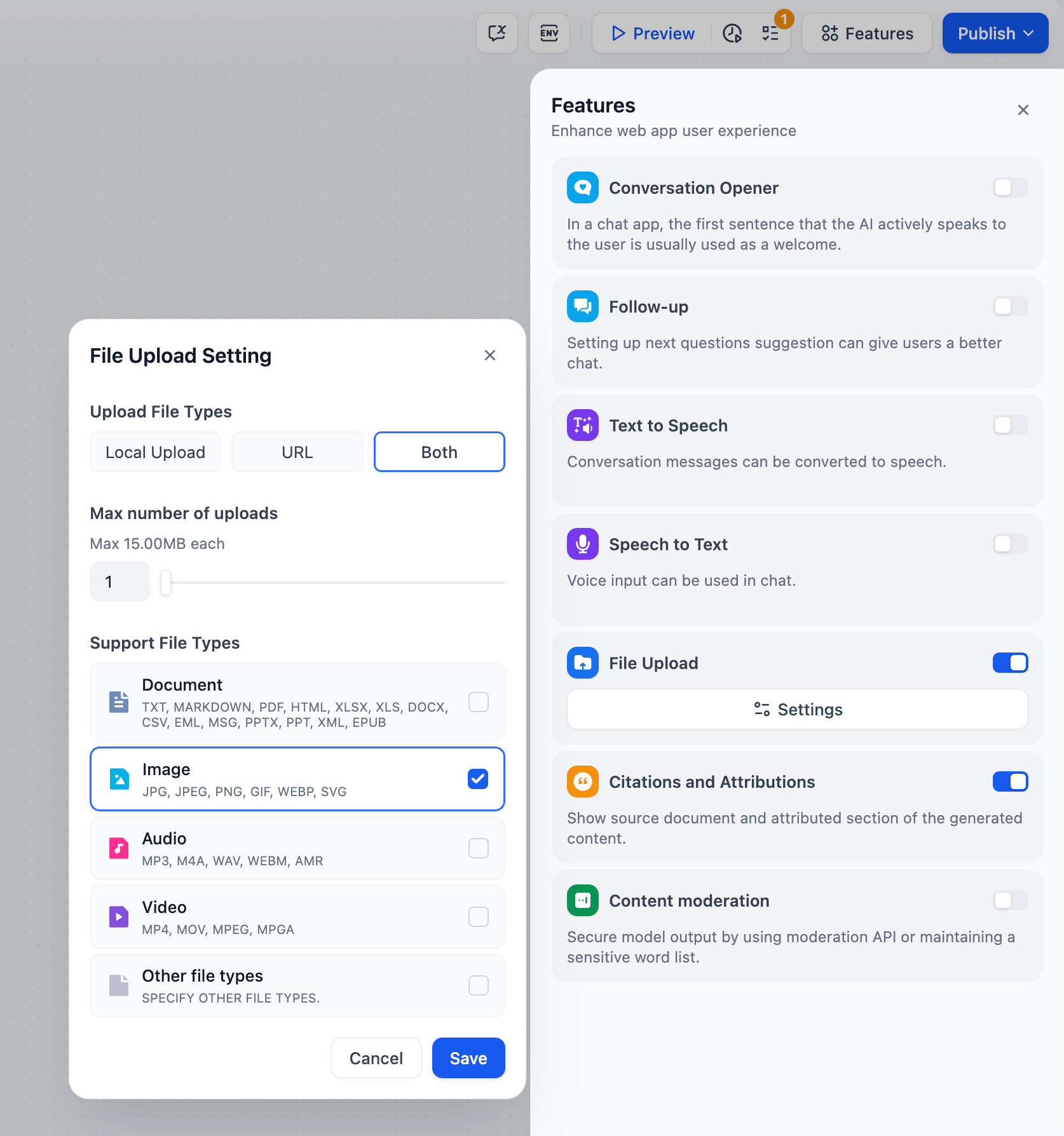 We no longer recommend using the standalone “Image Upload” feature and instead suggest transitioning to the more comprehensive “File Upload” feature to improve the application experience.
What You Need to Do?
For Dify Cloud Users:
- Chatflow Applications
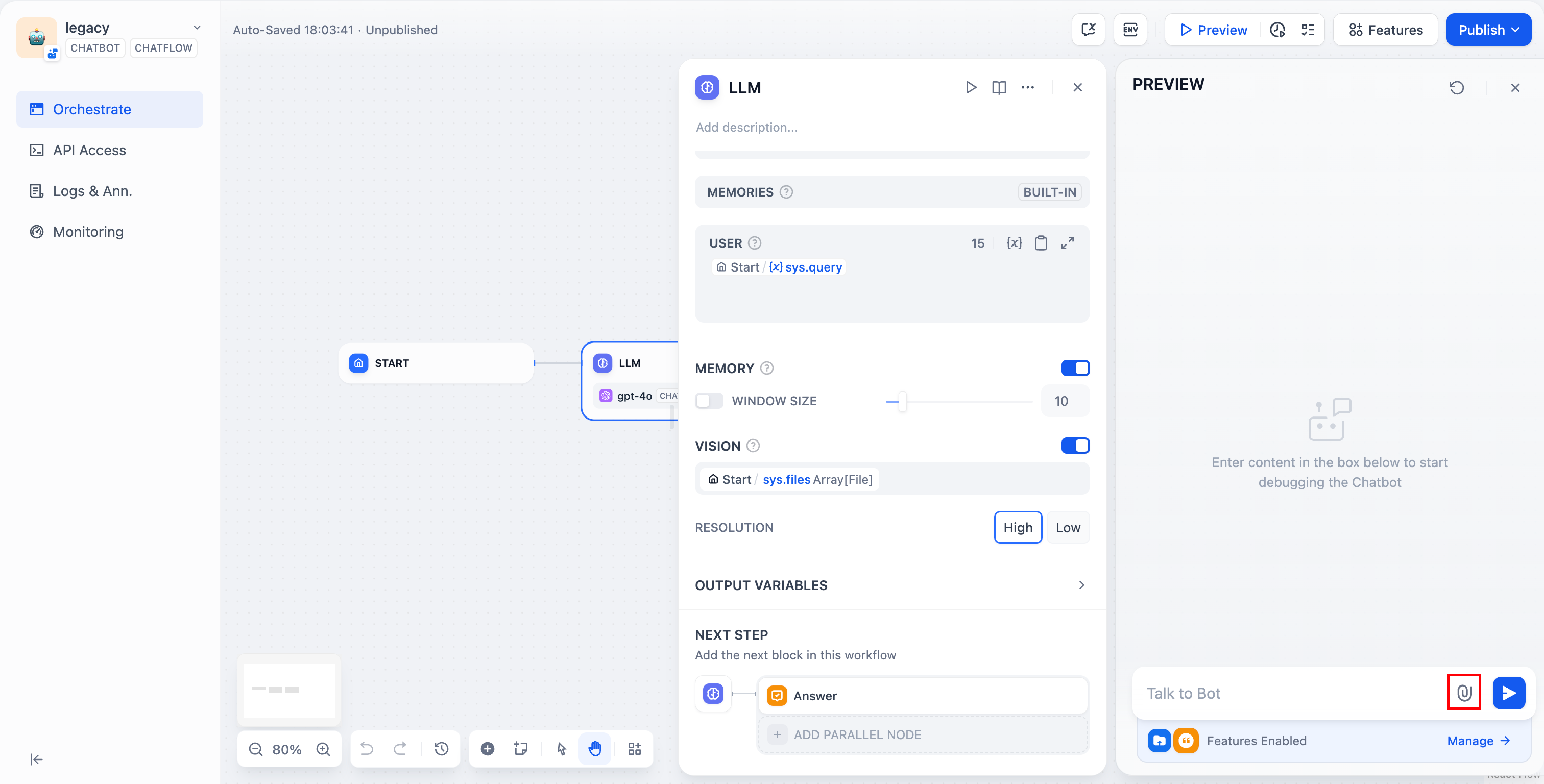
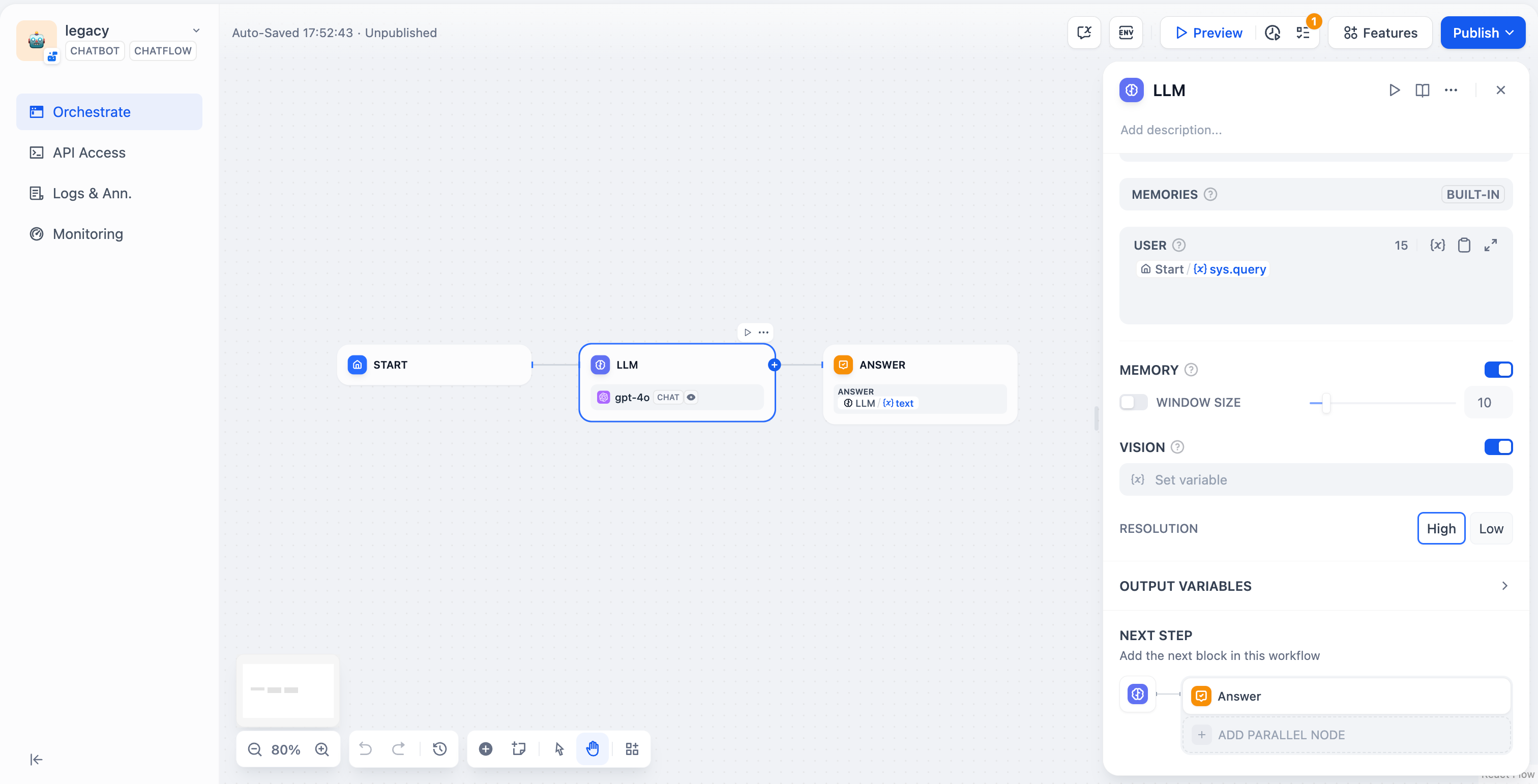 If you wish to add the “Image Upload” feature to a Chatflow application, enable “File Upload” in the features and select only the “image” file type. Then enable the Vision feature in the LLM node and specify the sys.files variable. The upload entry will appear as a “paperclip” icon. For detailed instructions, refer to Additional Features.
- Workflow Applications
sys.files variable.
For Dify Community Edition or Self-hosted Enterprise Users:
After upgrading to version v0.10.0, you will see the “File Upload” feature.- Chatflow Applications:
- Workflow Applications:
sys.files variable.
FAQs:
1. Will This Update Affect My Existing Applications?
- Existing Chatflow applications will automatically migrate, seamlessly switching image upload capabilities to the file upload feature. The
sys.filesvariable will still be used as the default Vision input. The image upload entry in the application interface will be replaced with a file upload entry. - Existing Workflow applications will not be affected for now. The
sys.filesvariable and the image upload feature have been marked asLEGACY, but they can still be used. However, theseLEGACYfeatures will be deprecated in the future, and a manual update will be required at that time.
2. Do I Need to Update My Applications Immediately?
- For Chatflow applications, the system will automatically migrate, and no manual updates are required.
- For Workflow applications, although an immediate update is not necessary, we recommend familiarizing yourself with the new file upload feature to prepare for future migration.
3. How Can I Ensure My Applications Are Compatible with the New File Upload Feature?
For Chatflow applications: • Check if the file upload option is enabled in the features configuration. • Ensure you’re using an LLM with Vision capabilities, and turn on the Vision toggle. • Verify thatsys.files is correctly selected as the input item in the Vision box.
For Workflow applications:
• Create a file-type variable in the “Start” node.
• Reference this file variable in subsequent node instead of using the LEGACY sys.files variable.
4. How to handle missing image upload icons in previously published Chatflow applications?
It is recommended to republish the application, and the file upload icon will appear in the application’s chat box.We Value Your Feedback
As a key member of the Dify community, your experience and feedback are crucial to us. We warmly invite you to:- Try the file upload feature and experience its convenience and flexibility.
- Share your thoughts and suggestions via the following channels: • GitHub • Discord channel
Edit this page | Report an issue