

1. Obtaining the Dify Application iFrame Code Snippet
Assuming you’ve already created a Dify AI application, follow these steps to acquire the iFrame code snippet:- Log into your Dify account
- Select the Dify application you wish to embed
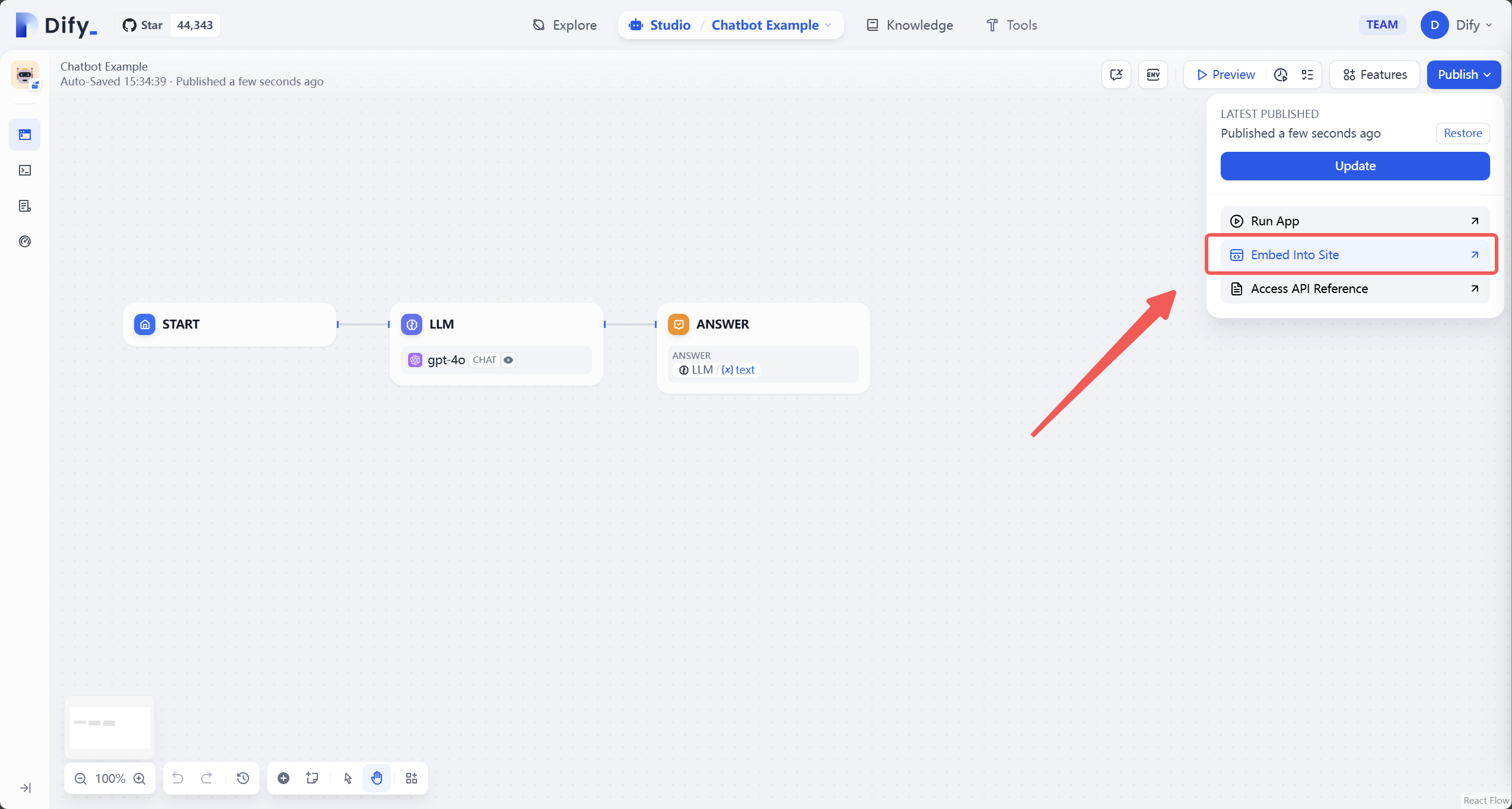
- Click the “Publish” button in the upper right corner
-
On the publish page, choose the “Embed Into Site” option
-
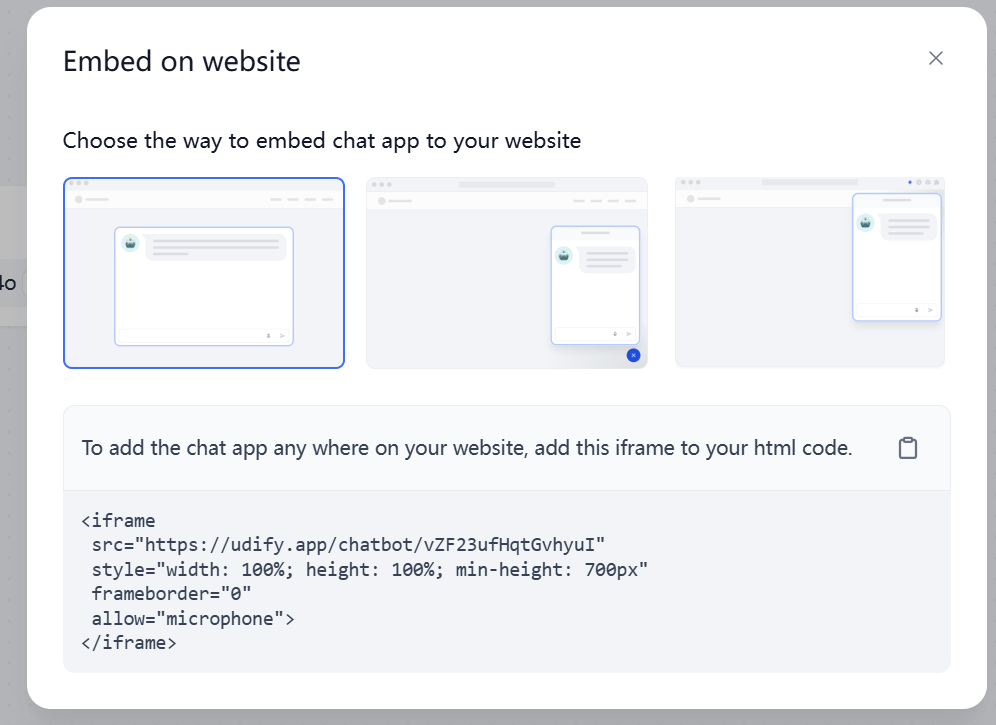
Select an appropriate style and copy the displayed iFrame code. For example:
2. Embedding the iFrame Code Snippet in Your Wix Site
- Log into your Wix website and open the page you want to edit
-
Click the blue
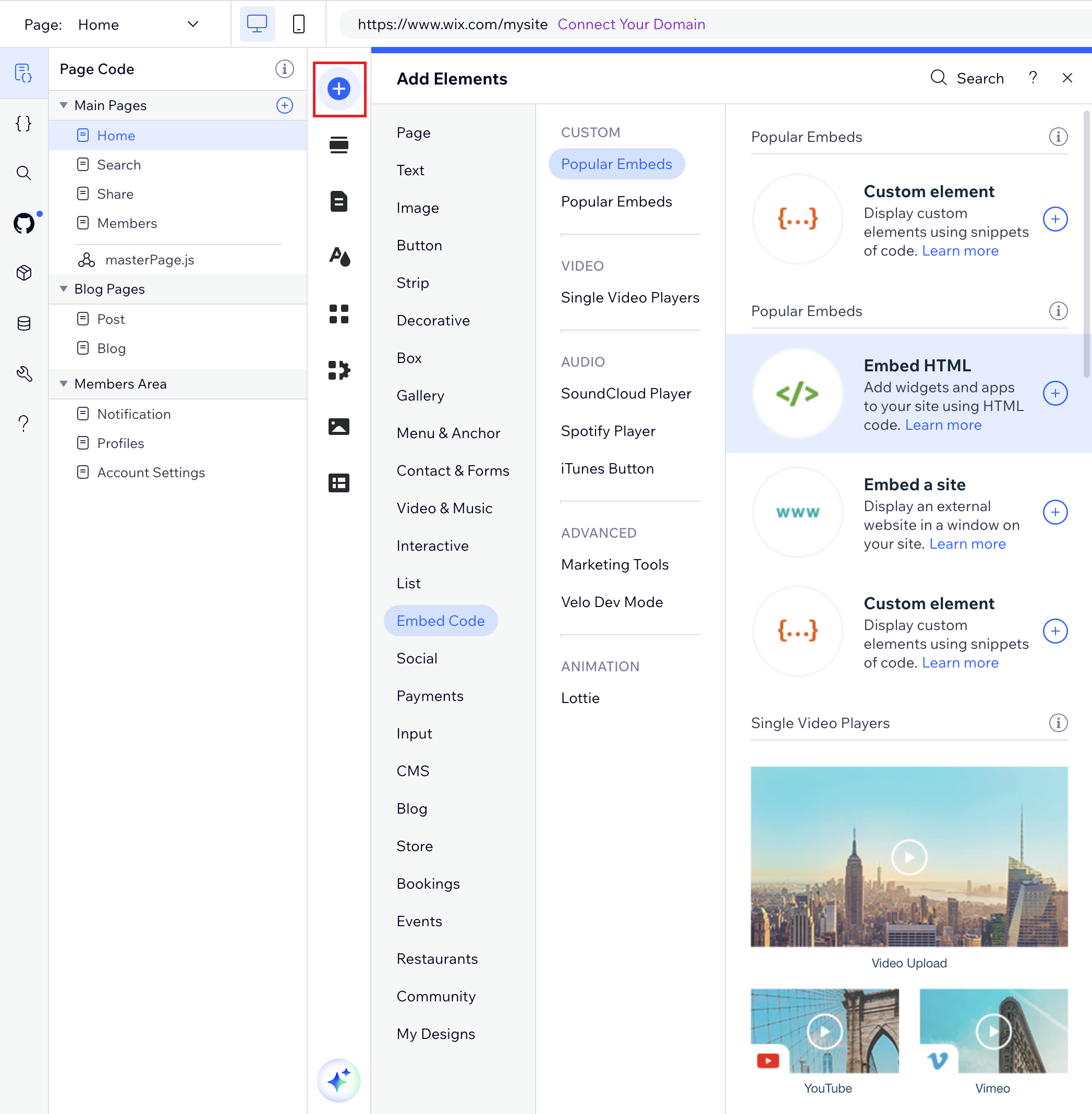
+(Add Elements) button on the left side of the page -
Select Embed Code, then click Embed HTML to add an HTML iFrame element to the page
-
In the
HTML Settingsbox, select theCodeoption - Paste the iFrame code snippet you obtained from your Dify application
- Click the Update button to save and preview your changes
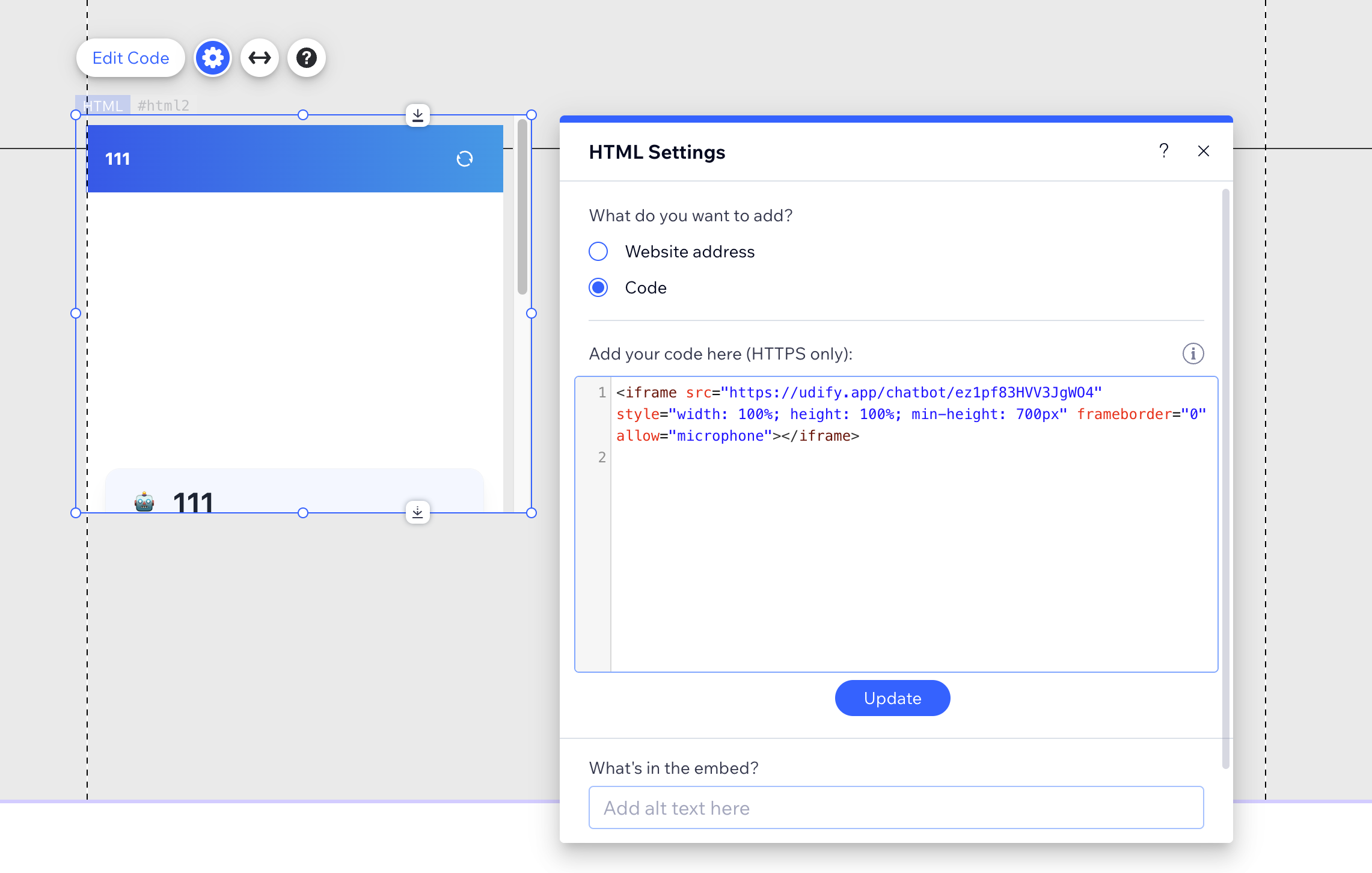
⚠️ Ensure the address in the iFrame code begins with HTTPS. HTTP addresses will not display correctly.
3. Customizing Your Dify Chatbot
You can adjust the Dify Chatbot’s button style, position, and other settings.3.1 Customizing Style
Modify thestyle attribute in the iFrame code to customize the Chatbot button’s appearance. For example:
3.2 Customizing Position
Adjust the button’s position by modifying theposition value in the style attribute. For example:
FAQ
1. iFrame Content Not Displaying- Verify that the URL starts with HTTPS
- Check for typos in the
iframecode - Verify the embedded content complies with Wix’s security policies
width and height percentage values in the iframe code to resolve content truncation issues.
Edit this page | Report an issue